
Download Tab Candy – Innovative Firefox Tab Manager, Free & Secure
Overview
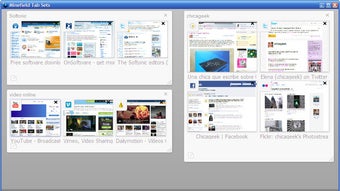
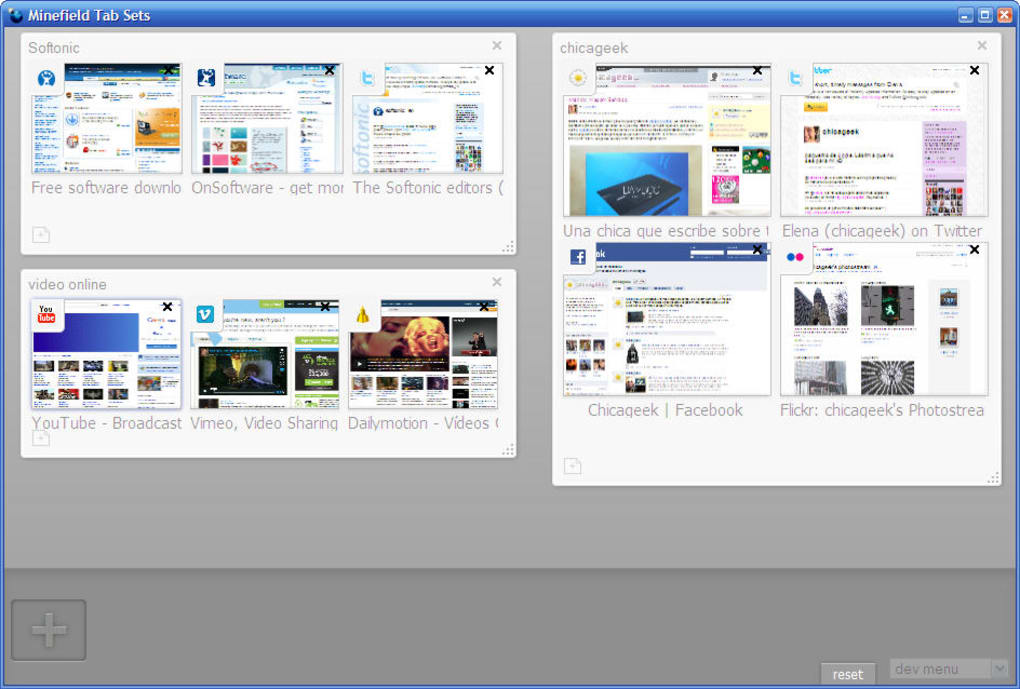
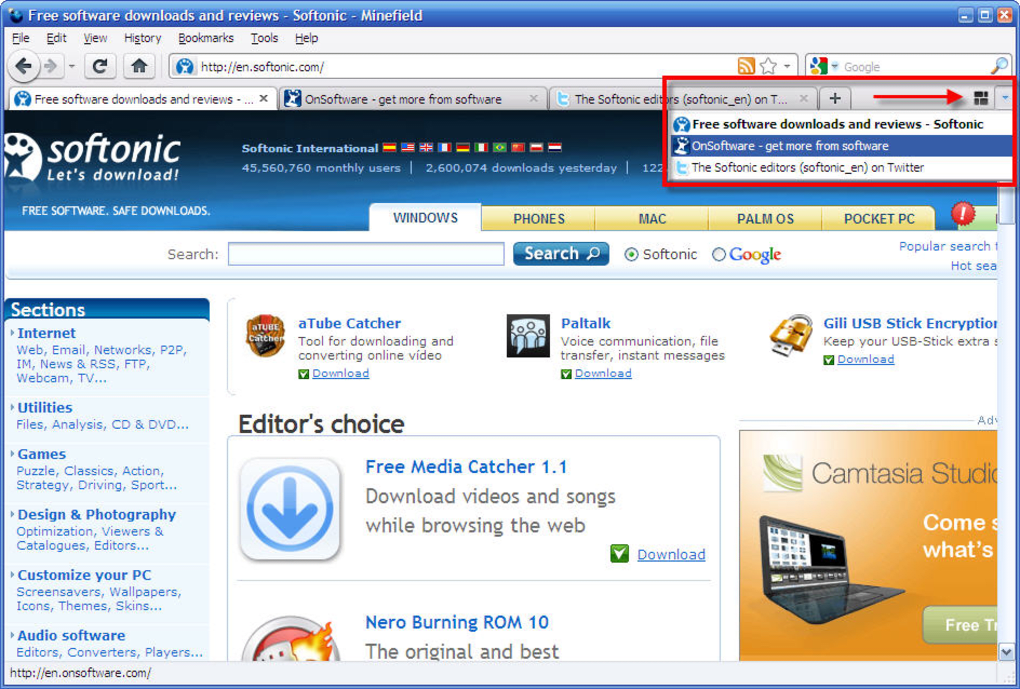
Tab Candy is an original, highly functional way to manage tabs in Mozilla Firefox. Designed for power users and casual browsers alike, Tab Candy transforms the traditional linear tab bar into a visual, thumbnail‑based workspace that lets you see, group, and reorganise your open pages at a glance. By clicking a small button on the right side of the Firefox tab bar, the add‑on opens a new visual environment where each tab appears as a small image preview.
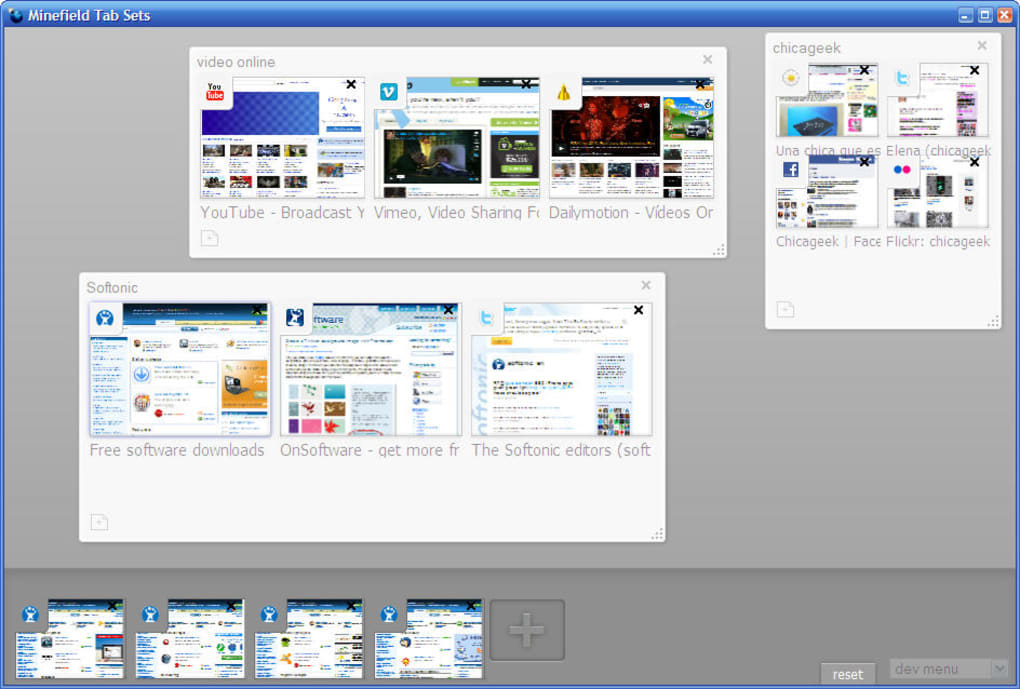
This thumbnail view makes it easy to locate a specific page without hunting through long lists of tab titles. Moreover, Tab Candy introduces the concept of **tab groups**, allowing you to drag one thumbnail onto another to create a named collection of related pages—perfect for separating social media feeds, research projects, travel itineraries, or recipe collections. Groups can be resized, renamed, and rearranged freely, giving you a dynamic, clutter‑free browsing experience.
While still in early development, Tab Candy demonstrates how a visual approach can boost productivity, reduce distraction, and keep important information within reach. The current version runs on the early build of Firefox 4.0, but the underlying ideas are already shaping the future of tab management in modern browsers.
Key Features of Tab Candy
- Thumbnail Overview: Every open tab is displayed as a small image preview, allowing instant visual identification.
- Drag‑and‑Drop Grouping: Create custom groups by dragging one tab thumbnail onto another; groups can be renamed to reflect their content.
- Resizable Groups: Adjust the size of each group to show more or fewer thumbnails, depending on your current focus.
- Quick Switching: Click a group to isolate its tabs, pushing all other tabs to the background and minimizing distractions.
- Save‑for‑Later List: Use groups as a reading list; you can keep articles, videos, or reference pages together until you’re ready to consume them.
- Seamless Integration: Activated via a single button on the Firefox tab bar, the interface slides in without altering your existing workflow.
- Custom Naming: Assign meaningful names to groups (e.g., “Trip Planning”, “Cooking Recipes”) for instant context.
- Future‑Ready Architecture: Built with extensibility in mind, making it a strong candidate for eventual inclusion as a native Firefox feature.
Each of these features targets a common pain point for Firefox users: the overwhelming number of open tabs that can lead to information overload. By turning tabs into visual objects and allowing flexible grouping, Tab Candy empowers you to organise your browsing session like a digital workspace. The thumbnail preview also serves as a quick memory aid—no more trying to recall the exact title of a page you opened hours ago. The drag‑and‑drop interface feels natural, mirroring how you would rearrange windows on your desktop, which reduces the learning curve dramatically. As a free, open‑source extension, Tab Candy offers these capabilities without any hidden costs or intrusive ads, aligning with Firefox’s commitment to user privacy and security.
Installation & Practical Usage Guide
Step‑by‑Step Installation
- Visit the official Tab Candy download page or the Mozilla Add‑ons site.
- Click the Download button; the file is a
.xpipackage compatible with Firefox 4.0 and later. - When prompted, confirm the installation by clicking Install. Firefox will verify the add‑on’s signature to ensure it’s secure.
- After the installation completes, restart Firefox to activate Tab Candy.
The installation process is straightforward and mirrors the typical Firefox add‑on workflow, ensuring a secure and hassle‑free setup. Because Tab Candy is distributed as an unsigned early‑access version, make sure you download it from the official source to avoid tampered files.
First‑Time Launch
Once Firefox restarts, look for a small candy‑shaped icon on the far right of the tab bar. Clicking this icon opens the Tab Candy workspace. You’ll immediately see all open tabs displayed as thumbnails. If you have only a few tabs, they’ll appear larger; as you open more, the thumbnails shrink to accommodate the view.
Creating and Managing Groups
To create a group, simply drag one tab’s thumbnail onto another. A new container appears, holding both tabs. You can then drag additional tabs into this container. To rename the group, double‑click the group header and type a descriptive title. Resize the group by dragging its edges; a larger group reveals bigger thumbnails, making it easier to spot a specific page.
Groups can be nested: drag a whole group onto another to merge them, or split a group by dragging a single thumbnail out. This flexibility lets you reorganise your workspace on the fly, adapting to changing priorities throughout the day.
Switching Between Groups
Clicking a group’s name isolates its tabs, automatically hiding all others in the background. This “focus mode” reduces visual clutter and helps you concentrate on a single task—whether you’re writing a blog post, researching a topic, or planning a vacation. To return to the full view, click the Tab Candy icon again or select another group.
Saving Tabs for Later
If you encounter an article you want to read later, drag its thumbnail into a dedicated “Read Later” group. Because groups persist across browsing sessions (as long as you don’t clear your Firefox profile), you’ll find your saved content exactly where you left it, ready for the next time you open the browser.
Overall, Tab Candy’s workflow is designed to be intuitive: a single click to enter the visual mode, drag‑and‑drop to organise, and a quick click to focus. The learning curve is minimal, and the productivity gains become apparent after just a few minutes of use.
Compatibility, Pros & Cons
Tab Candy runs on any operating system that supports Mozilla Firefox 4.0 or newer, including Windows 7/8/10/11, macOS 10.10 and later, and major Linux distributions (Ubuntu, Fedora, Debian). Because it is a Firefox add‑on, the underlying OS does not affect its functionality; the only requirement is a compatible Firefox version.
Pros
- Visual Clarity: Thumbnail previews eliminate the need to read long tab titles.
- Custom Grouping: Drag‑and‑drop groups let you organise workspaces exactly how you want.
- Focus Mode: Isolating a single group reduces distractions and improves concentration.
- Free & Secure: No hidden fees, no ads, and fully verified by Mozilla’s add‑on signing process.
- Cross‑Platform: Works on Windows, macOS, and Linux as long as Firefox is installed.
- Future‑Proof: Early‑access version shows promise for becoming a native Firefox feature.
Cons
- Early Development Stage: Some UI elements may feel experimental, and occasional bugs can occur.
- Firefox‑Only: Not available for Chrome, Edge, or Safari browsers.
- Resource Usage: Rendering many thumbnails can increase memory consumption on low‑end machines.
- Limited Customisation: Theme and colour options are currently minimal.
- Requires Firefox 4.0+: Users on very old versions need to update their browser.
Despite the cons, the benefits of a visual tab manager outweigh the drawbacks for most users. The ability to instantly see what each tab contains, combined with the flexibility of grouping, provides a workflow improvement that traditional linear tabs cannot match. As development continues, we can expect performance optimisations and additional customisation options that will further enhance the experience.
Frequently Asked Questions
Is Tab Candy completely free to use?
Yes, Tab Candy is an open‑source, free extension. There are no hidden fees, subscription models, or in‑app purchases. You can download and install it without any cost.
Can I use Tab Candy on browsers other than Firefox?
Currently Tab Candy is built specifically for Mozilla Firefox. The underlying technology relies on Firefox’s extension APIs, so it is not compatible with Chrome, Edge, or Safari at this time.
Will my groups be saved after I close Firefox?
Yes. As long as you do not clear your Firefox profile or uninstall Tab Candy, your groups and their names are stored locally and will reappear when you restart the browser.
Does Tab Candy affect browser performance?
Because Tab Candy generates thumbnail previews for each tab, it uses a modest amount of additional memory. On modern computers the impact is negligible, but on low‑end devices you might notice a slight slowdown when many tabs are open.
How do I report bugs or suggest new features?
You can report issues on the official GitHub repository linked from the download page. The developers actively monitor feedback and encourage users to suggest improvements or report bugs.
Conclusion & Call to Action
Tab Candy offers a fresh, visual approach to tab management that can dramatically improve productivity for Firefox users. By turning tabs into easy‑to‑recognise thumbnails and allowing flexible grouping, it eliminates the chaos of endless tab rows while keeping every page within reach. Even though it’s still in early development, the core functionality is stable, free, and secure. If you’re tired of losing important tabs or feeling overwhelmed by a crowded tab bar, give Tab Candy a try today. Download the latest version now, organise your browsing workspace, and experience a cleaner, more focused internet.







